IITM-VPN
IIT Madras provides VPN access to its network via Fortigate SSL VPN. In order to enable VPN, student/faculty/staff should make a request to Computer Center. VPN can be accessed through FortiClient by using LDAP username and password. Instruction for VPN connection
Request for VPN should be submitted through the portal: https://netservices.iitm.ac.in
Installation
Windows, MacOS, iOS & Android Download and install Forticlient from FortiNet Website
Direct download links:
Windows 10 and Windows Phone 10 (Click on Downloads and select Forticlient VPN-only)
MacOS (v10.8 Mountain Lion or higher)
Android (4.1 Jelly Bean or higher)
Ubuntu & Debian Download and extract FortiClient for Linux from here
CentOS, Fedora & Other Linux Download and extract FortiClient for Linux from here
Usage
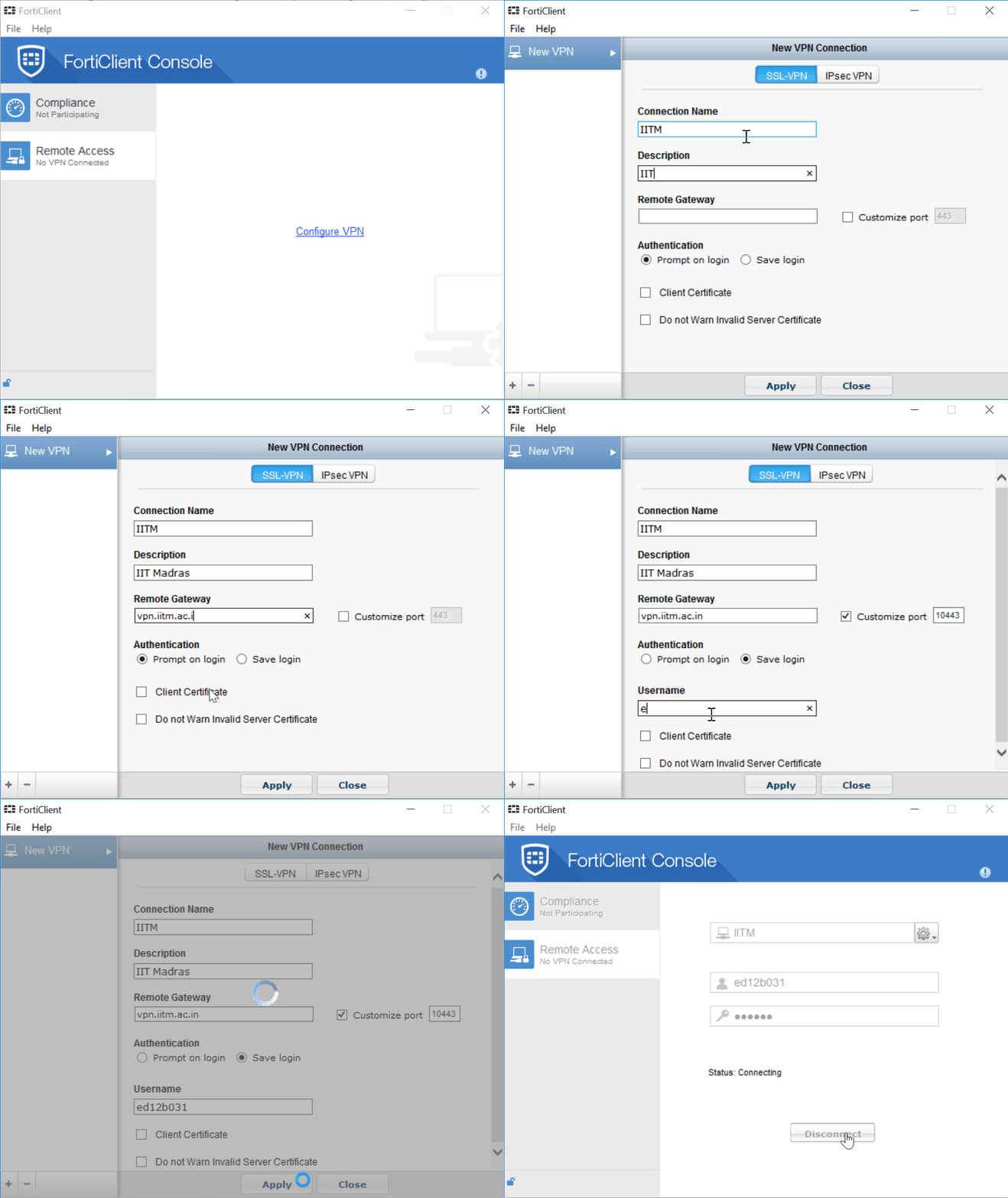
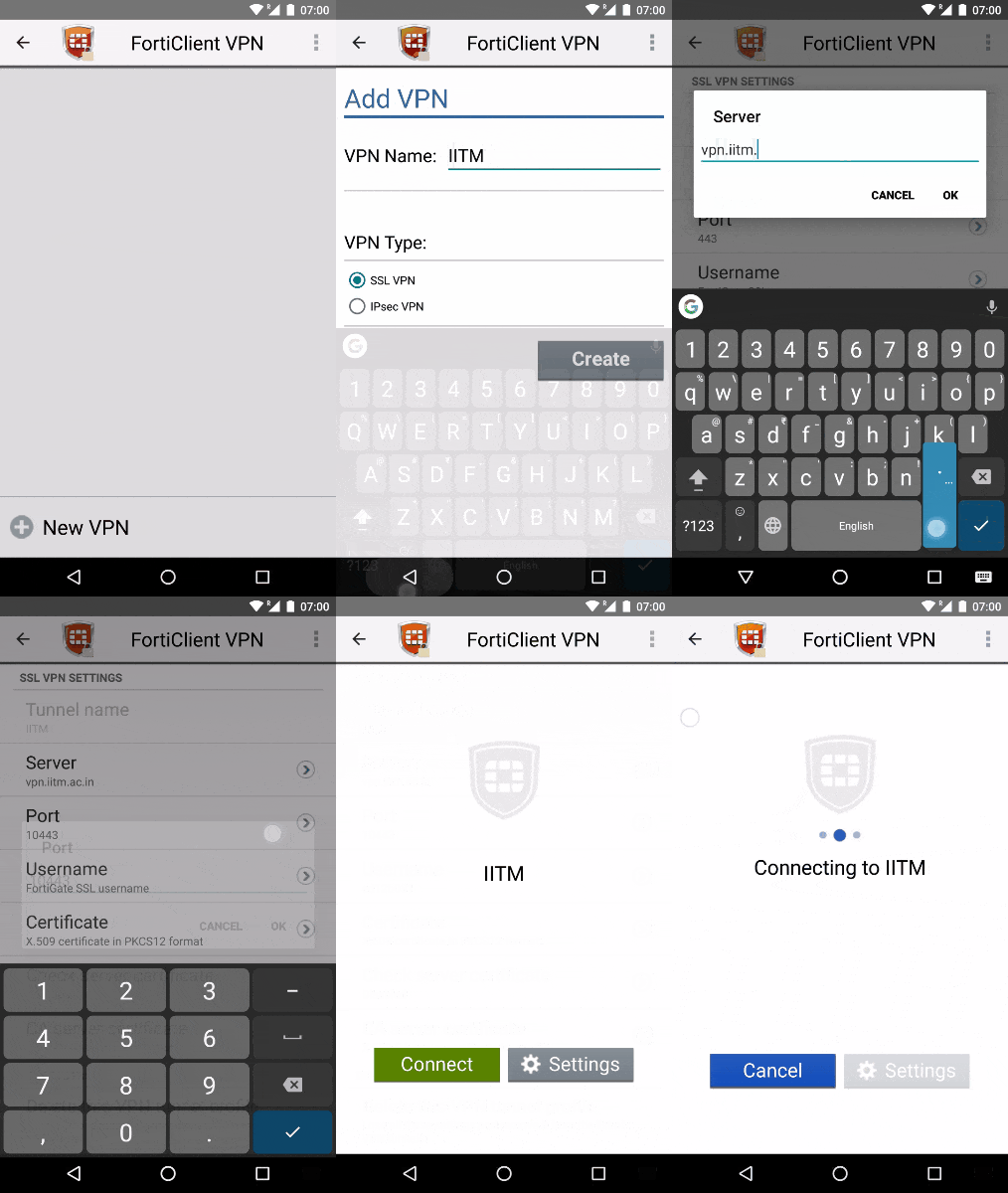
Windows, MacOS, iOS & Android
- Launch FortiClient
- Create a new VPN profile with following parameters:

    - Name: IITM
    - Type: SSL VPN
    - Server: vpn.iitm.ac.in
    - Port: 10443
    - Username: <your-ldap-username>
    - Password: <your-ldap-password>

- Save the profile and connect
- You can now use any browser to get IITM interNal websites
Windows
Android
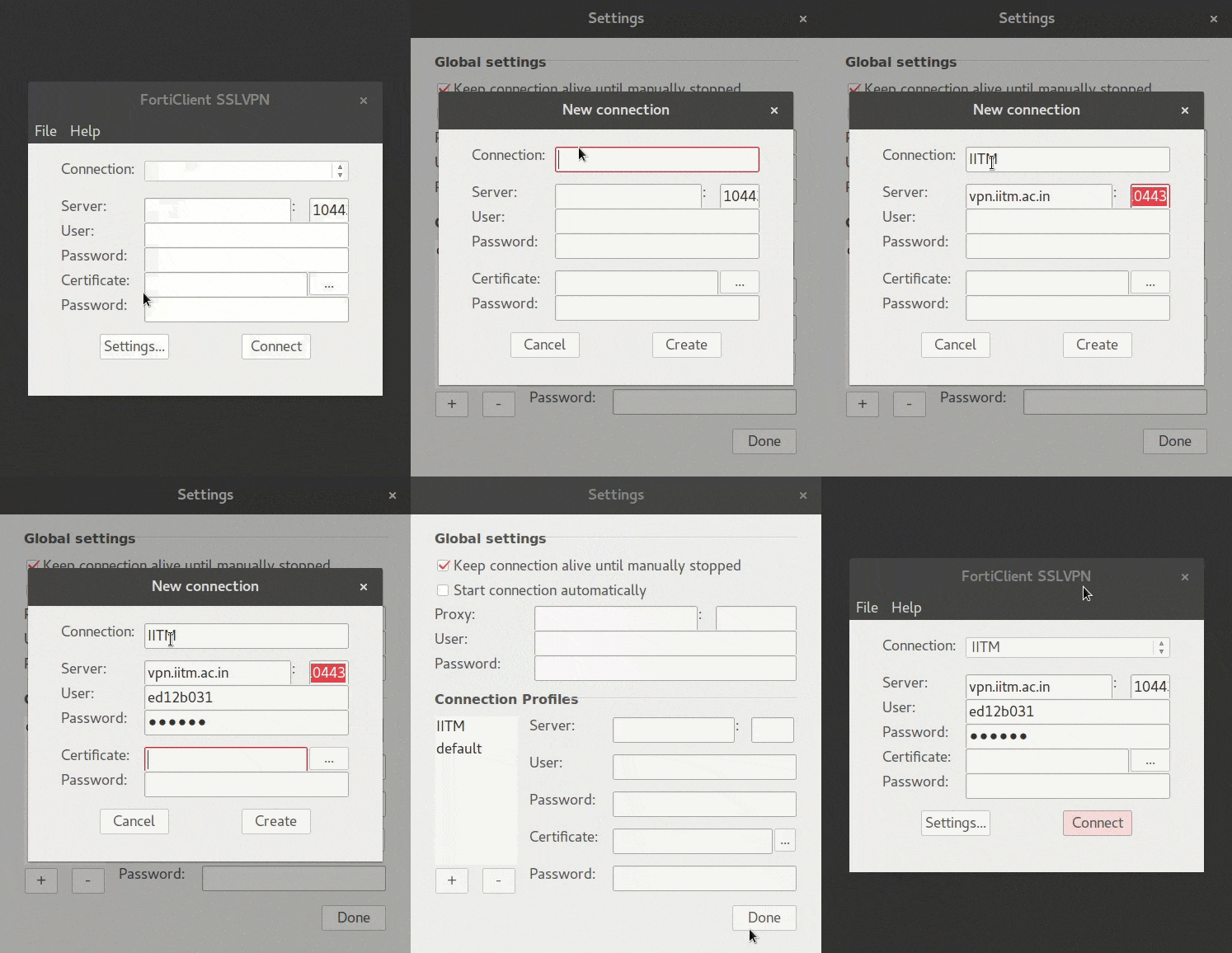
Linux
- FortiClient
   - Launch forticlientsslvpn from 32-bit or 64-bit folder
   - Enter administrator password when prompted
   - Accept license when prompted
   - Click on Settings
   - Click on + button under Connection Profiles
   - Enter the following details:

      - Connection: IITM
      - Server: vpn.iitm.ac.in
      - Port: 10443
      - User: <your-ldap-username>
      - Password: <your-ldap-password>

  - Click Create -> Done
  - Select IITM from Connection
  - Click Connect